01Which tool to use
All In Menu gives you two separate tools. Picking the wrong one is the single most common setup mistake, and it costs you money — so start here.
Ingredients
What the dish already contains.
- The customer takes them out
- Always free — there is no price box
- Tomato, pickles, onions, garlic sauce
- Kitchen reads “No Tomato”
Additions
What the customer can put on it.
- The customer adds them
- You set a price (zero is allowed)
- Extra cheese, extra chicken, bread choice
- Kitchen reads “+ Extra Cheese”
The test is simple: if you would charge for it, it is an addition. If it is already in the wrap and someone might not want it, it is an ingredient.
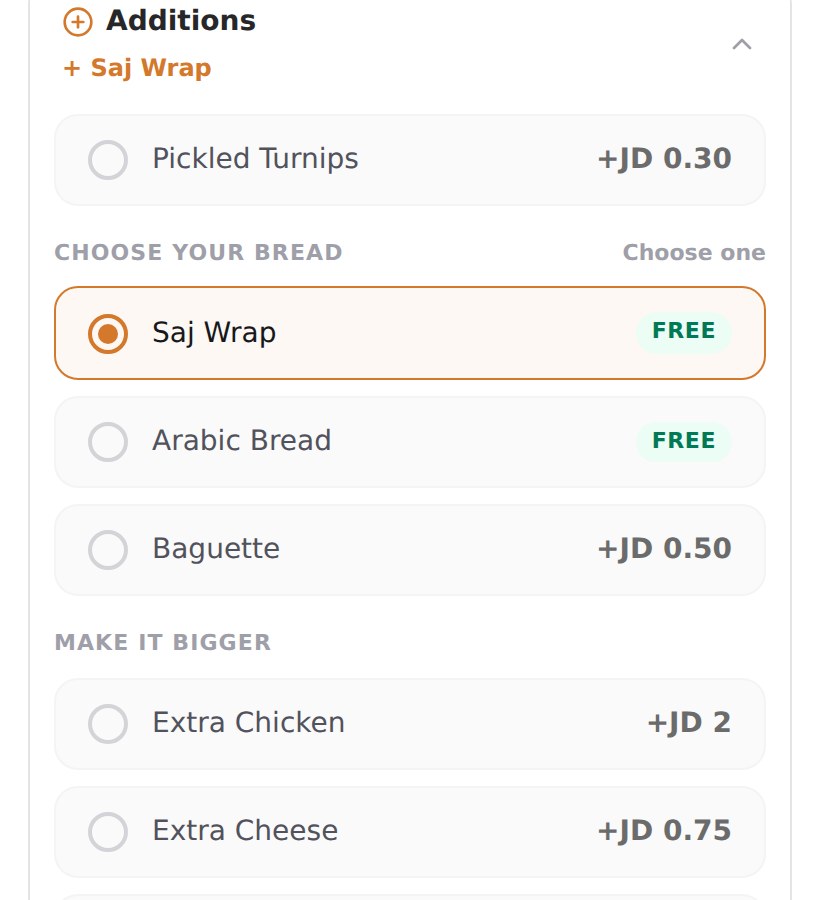
“Choose your bread — saj, Arabic or baguette” is a set of additions priced at zero, not ingredients. Additions can be grouped and set to Only one, which is what makes a proper either/or choice. Ingredients cannot.
02Build your library once
You define every ingredient and addition once for the whole menu, then attach them to the dishes that offer them. Change a price or a name here and it updates on every dish automatically.
Go to Menu→Library. You will see two tabs: Ingredients and Additions.
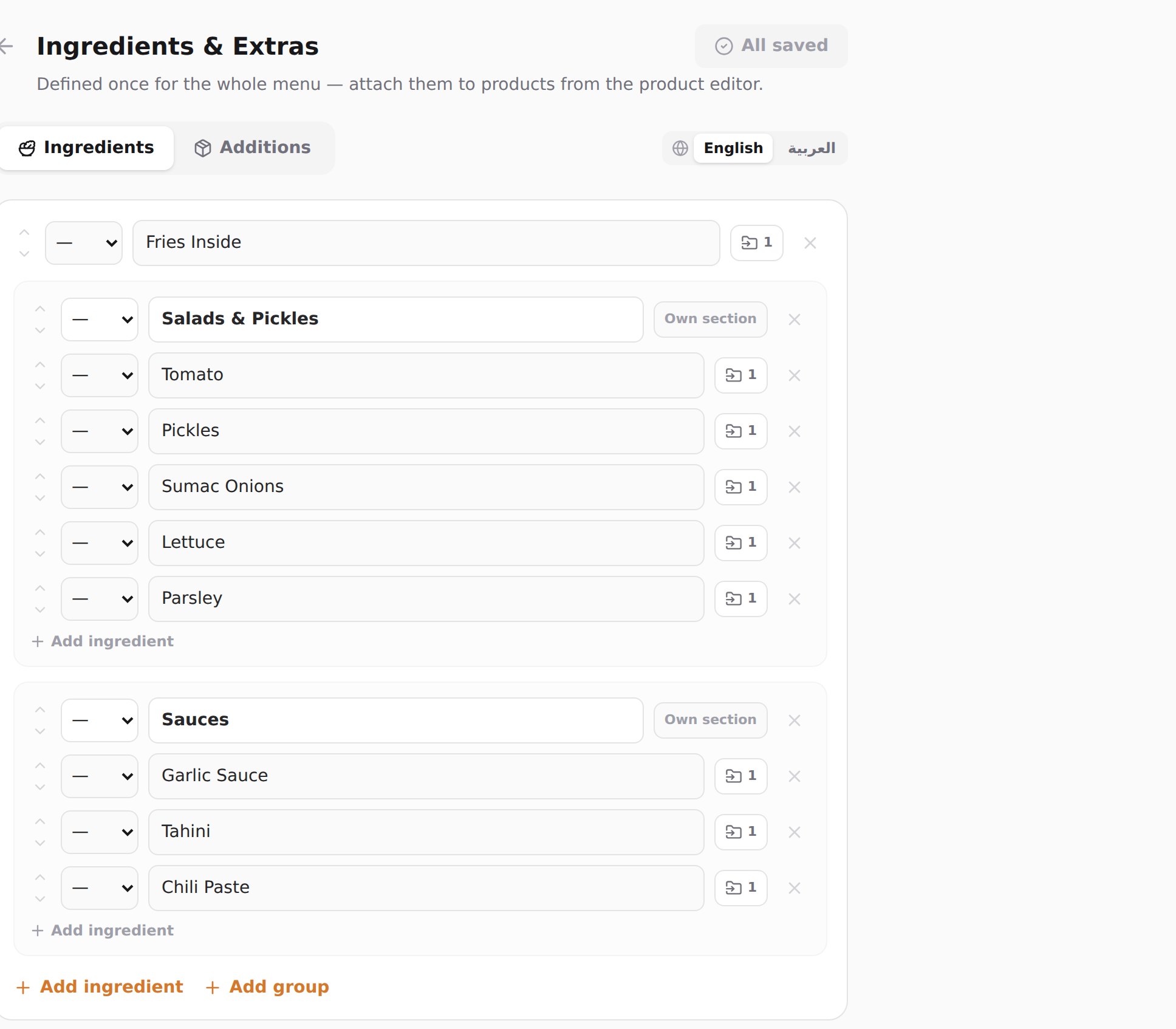
Ingredients tab
Add everything that goes inside your dishes. Use Add group to create sections — customers see these section names, so write them the way you would say them out loud.
Additions tab
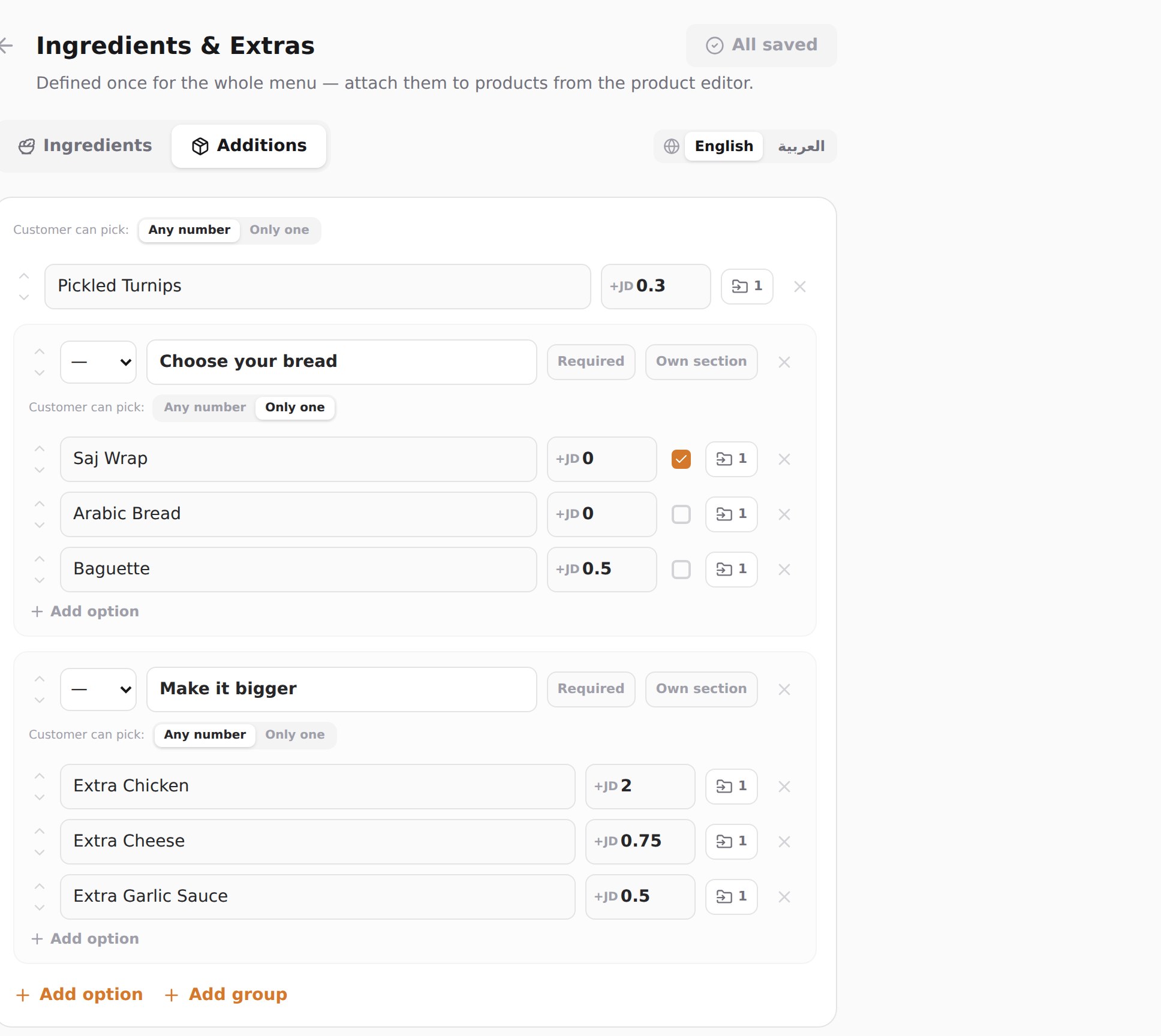
Same idea, with two extra controls that matter a great deal.
- Customer can pick
- Only one turns the group into an either/or choice — one bread, one sauce. Any number lets customers stack extras and choose quantities. This is set per group, and applies to every option inside it.
- Price
- What the addition costs. Leave it at 0 for free choices — customers see a green FREE badge instead of a price.
- The tick box
- Preselects one option in an Only one group, so the dish opens with your house default already chosen. Only available on Only-one groups.
- Required
- The customer cannot add the dish to their order until they have chosen from this group. Use it for bread or size-style choices.
- Own section
- Shows the group as its own separate block on the menu rather than folded in with the rest of the additions.
03Put them on a dish
Adding something to the library does not put it on any dish yet. You choose which dishes offer what — a shawarma and a salad rarely take the same extras.
Go to Menu and pick a category.
Click the dish you want to edit.
In the panel that opens on the right, use the Ingredients and Additions tabs.
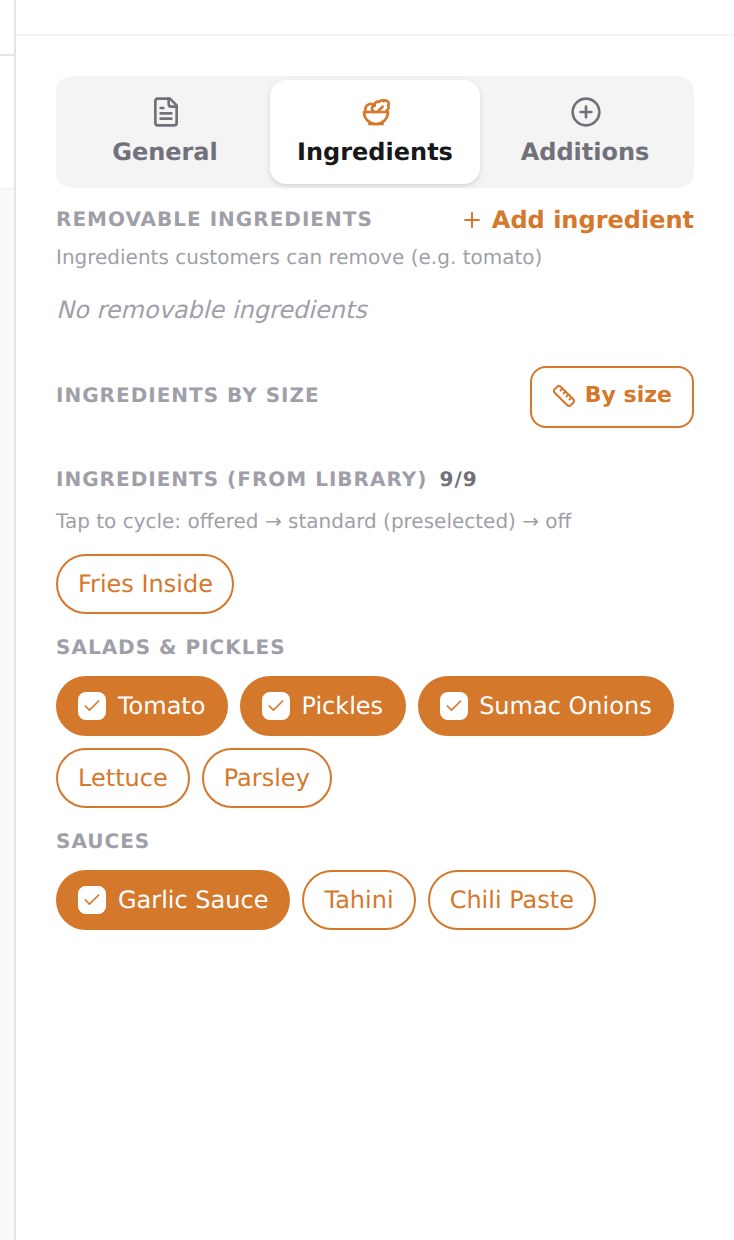
Tap a chip to cycle it
Each library entry is a chip with three states. Tap it repeatedly to move through them.
- Filled, with a tick
- Standard build. The dish comes with it. It is preselected for the customer, who can take it out.
- Outlined
- Offered. Not in the dish by default, but the customer can add it — still free.
- Not shown
- Off. This dish does not offer it at all. The customer never sees it.
In the screenshot above, the wrap comes with tomato, pickles, sumac onions and garlic sauce. Lettuce, parsley, tahini, chili paste and fries are offered but not included.
Additions work the same way
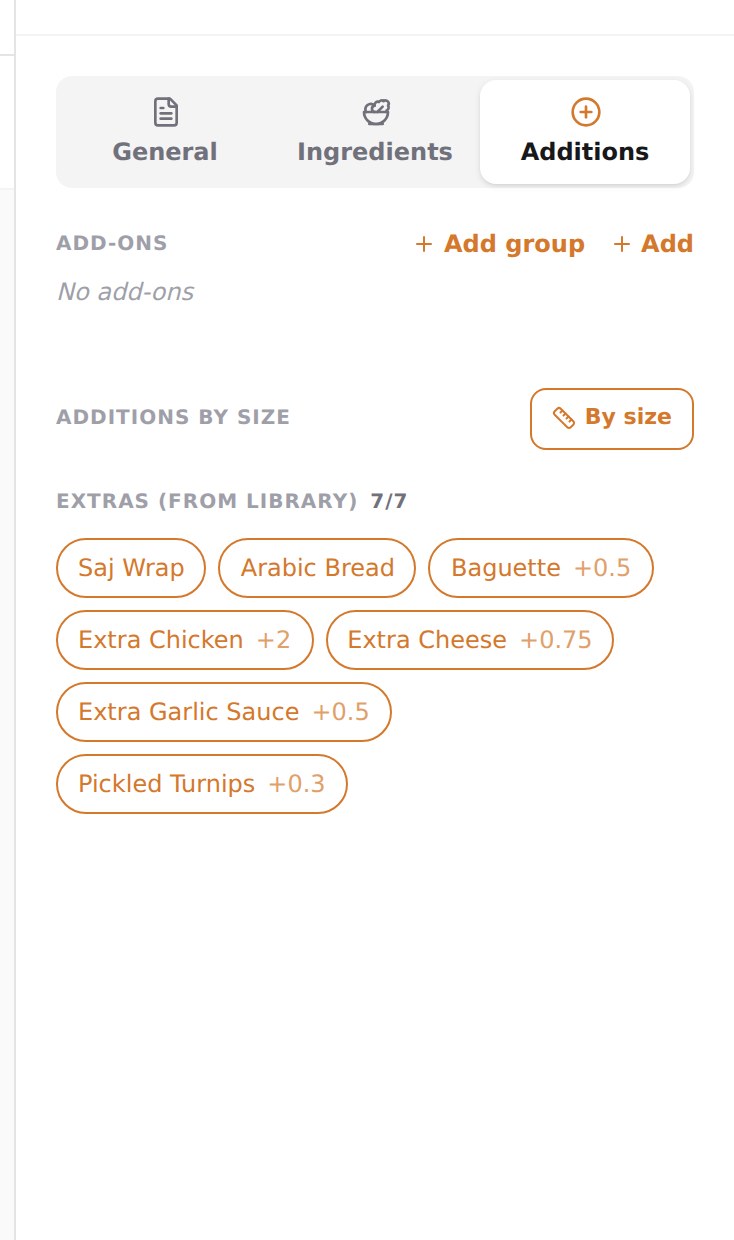
- Removable ingredients / Add-ons
- One-offs that belong to this dish alone and are not worth adding to the library. Use them sparingly — library entries are easier to maintain.
- By size
- Give a size its own list. A large wrap can offer extras the regular one does not. Leave it alone and every size offers the same things.
04What your customer sees
This is the same dish, on a customer's phone, with the setup above.
Choosing a way
When a dish has a standard build, customers are not dropped into a checklist. They pick a door first — your house recipe, or their own version.
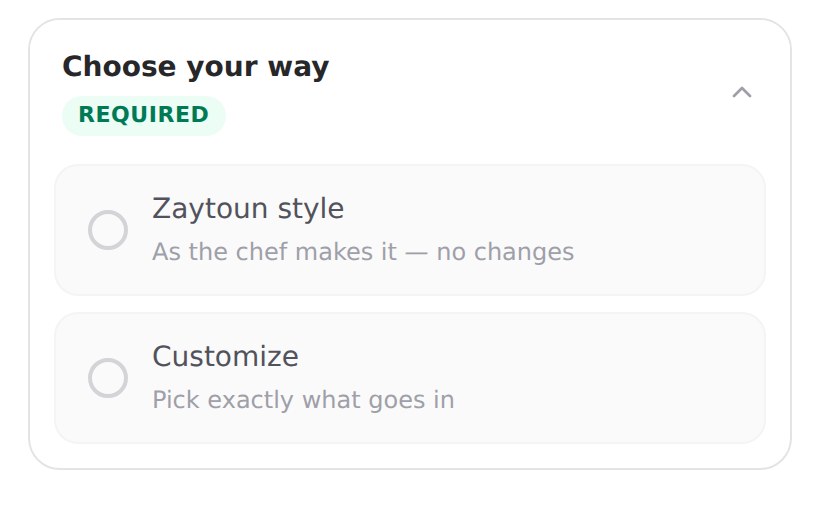
The two-door step is an optional feature that the All In Menu team activates for your restaurant. If your dishes go straight to the ingredient list instead, that is why — ask us to turn it on.
Chef's recipe is the no-thought path: the dish exactly as you make it. Customize opens the ingredient list. Dishes with no standard build skip this step entirely.
Additions
Ingredients
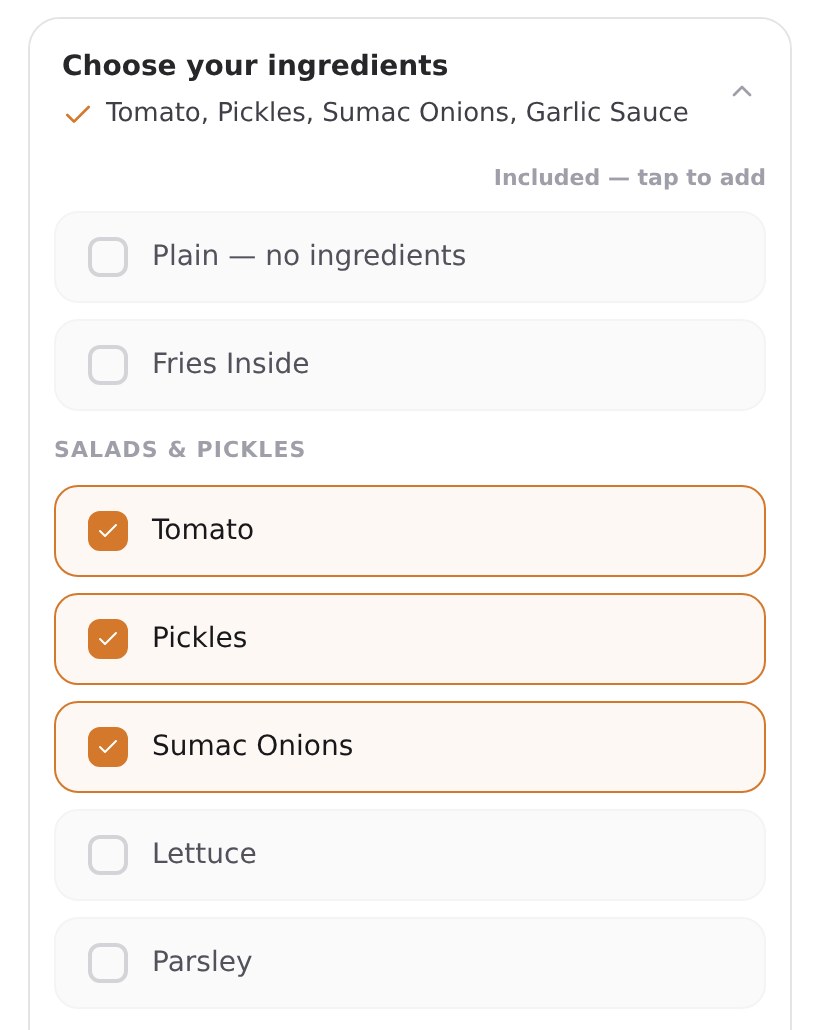
Notice Plain — no ingredients at the top. It is added automatically, so a customer who wants the wrap bare can say so in one tap instead of unticking nine things.
05What your kitchen sees
Everything above exists to produce one clear ticket. The same lines appear on the kitchen display, the printed ticket, the WhatsApp message and your email.
- ✓ on the first line
- Which way the customer chose — your house recipe, or their own.
- ✓ elsewhere
- Something they kept or chose. No charge.
- −
- Something they took out. Never charged.
- +
- An addition, with how many and what it added to the price.
Quantities multiply the price, so two portions of a 0.75 extra print as (+1.50). If a customer picks Customize and then changes nothing, the ticket says Your Way (plain) so your kitchen knows it was deliberate.
06Mistakes to avoid
Five things that come up again and again in support.
- Putting a paid extra in the Ingredients listIngredients have no price box, so customers can only remove it — never add it, and you never charge for it. This is the costly one.Fix: move it to the Additions tab and set a price.
- Building the library but never attaching anythingThe library is a list of what your kitchen can do. Until you tap the chips on a dish, that dish offers nothing.Fix: open each dish and set its chips.
- Making an either/or choice “Any number”Customers can then pick saj and Arabic and baguette on one wrap, and the kitchen gets a ticket it cannot build.Fix: set the group to Only one, and switch on Required if they must choose.
- Deleting a library entry to remove it from one dishDeleting removes it from every dish that offers it, across the whole menu.Fix: open that one dish and tap the chip until it is off.
- Marking everything as the standard buildIf all nine ingredients are preselected, Customize becomes a wall of ticks and customers give up.Fix: preselect only what the dish genuinely comes with.
Rename an ingredient, an addition or a group whenever you like. The change follows through to every dish and every menu language — nothing gets detached or lost.
07Quick answers
Can I charge for removing something?
No. Removals are always free by design. If you need to charge, it belongs in Additions.
Do I have to translate everything twice?
Switch the language toggle at the top of the Library and fill in the second language. One entry carries all its translations, so your customer sees their own language wherever the item appears.
Can two sizes offer different extras?
Yes. Use “By size” in the dish's Additions tab. Sizes you do not customise simply follow the dish.
Why does one dish show “Choose your way” and another doesn't?
The two doors only appear when a dish has a standard build — at least one ingredient marked as included. A dish with no preselected ingredients goes straight to the list.
How many additions and ingredients can I add?
There is no practical limit, but long lists hurt orders. Most restaurants do well with two or three ingredient sections and two addition groups per dish.
Will an addition's price show in the total before ordering?
Yes. The price updates live as the customer picks, and the full breakdown reaches you on the order.