01Decide what you offer
Everything else follows from this. Open Settings→Delivery & pickup and turn on what your restaurant actually does.
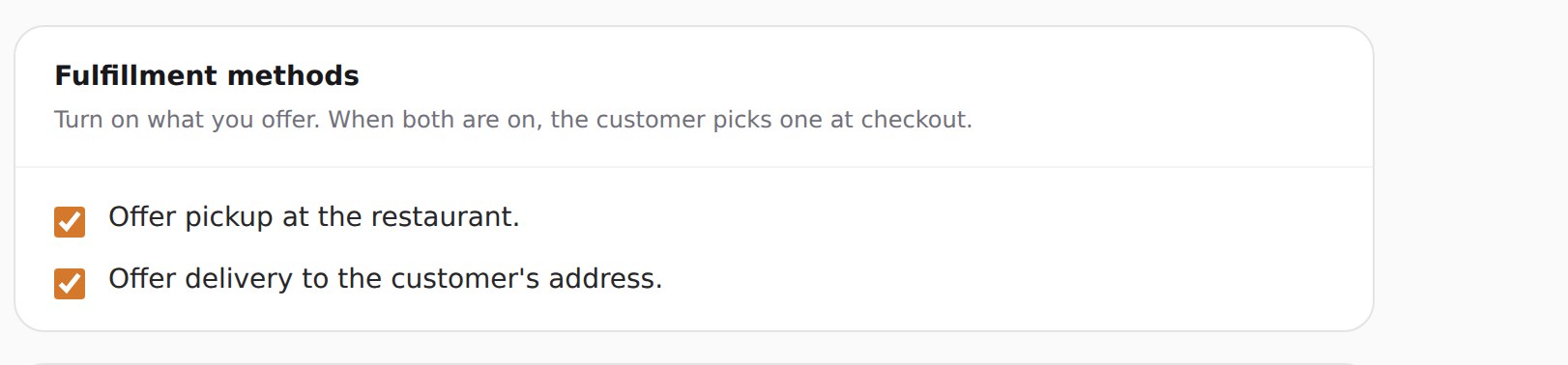
Pickup and delivery options only reach customers when WhatsApp ordering is switched on, because the order details travel through WhatsApp. If you set all of this up and customers still see no delivery choice, check Settings→Ordering first.
02Two ways to charge
You can quote one fee to everybody, or price each order by how far the customer is. Start with the simple one — it is also the fallback whenever distance pricing cannot be worked out.
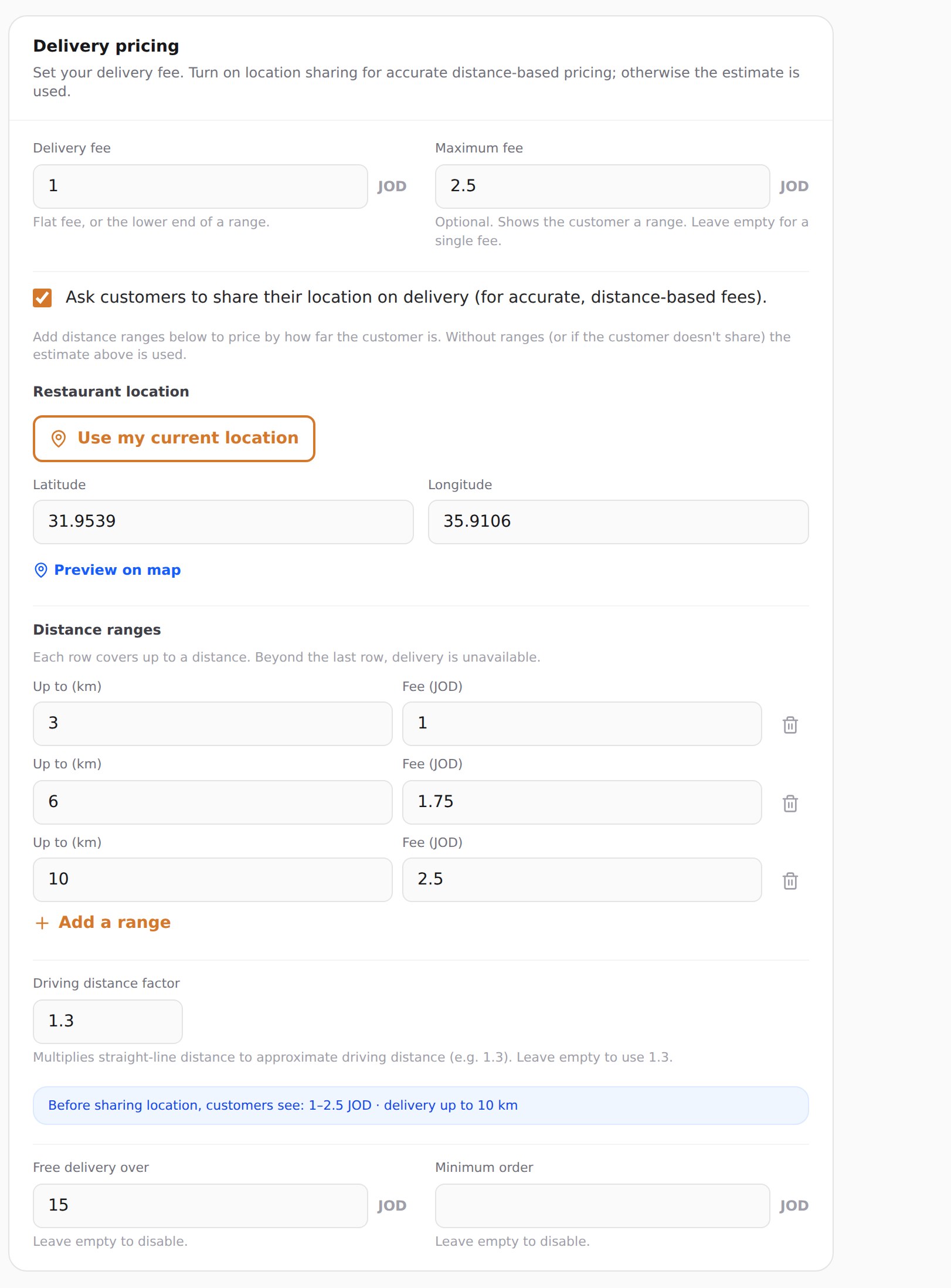
- Delivery fee
- Your flat fee — or the lower end of a range if you fill in the next box.
- Maximum fee
- Optional. Fill it in and customers see a range instead of one figure. Leave it empty for a single fee.
- Free delivery over
- Orders at or above this subtotal pay no delivery fee. Works with distance pricing too. Leave empty to switch off.
- Minimum order
- Below this subtotal the customer cannot place a delivery order at all. Leave empty to switch off.
03Price by distance
This is the part worth getting right. Instead of one fee for everyone, you set bands — near customers pay less, far ones pay more, and beyond your last band you simply do not deliver.
Tick Ask customers to share their location on delivery.
Set your Restaurant location. Stand in your restaurant and press Use my current location, or paste the coordinates. Check it with Preview on map — every fee is measured from this pin, so a wrong pin misprices every order.
Add your Distance ranges, cheapest and nearest first.
Your last row is your delivery area
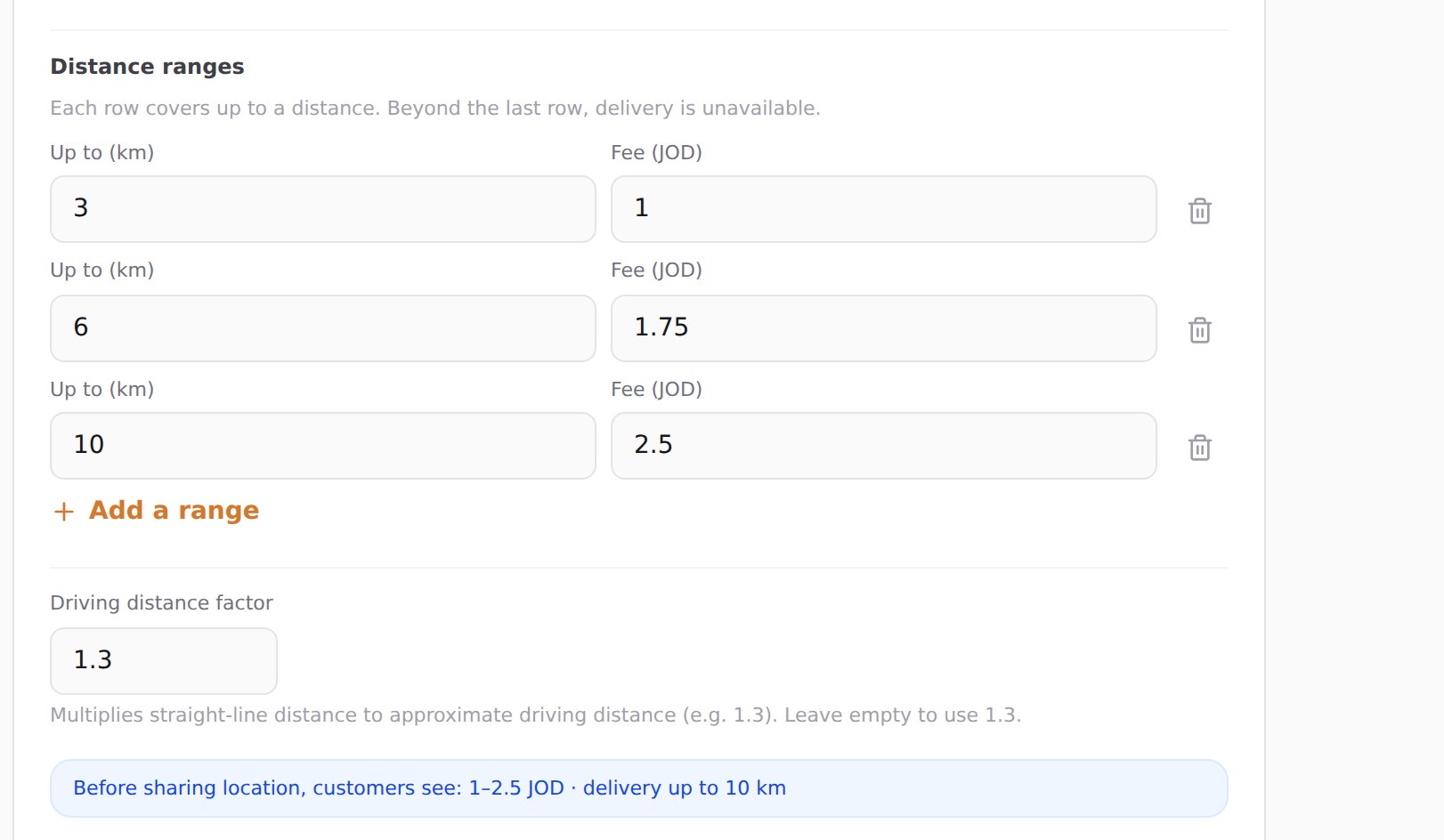
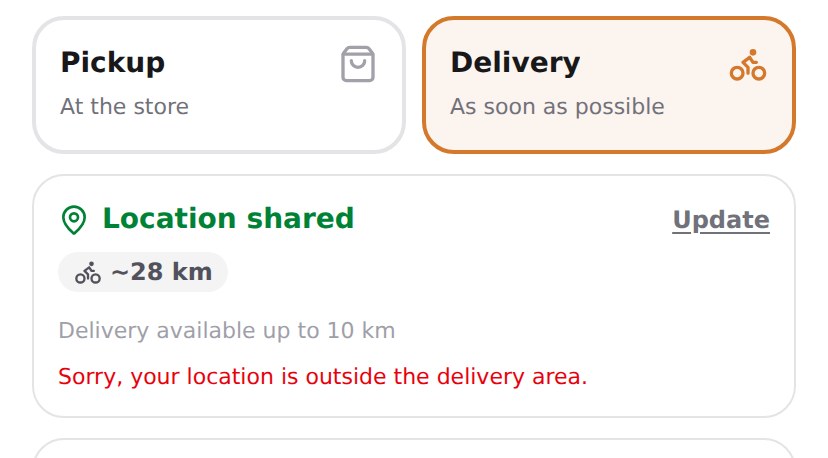
Each row covers everything up to its distance. The first row that reaches far enough wins. Past the final row there is no fee to charge, so the customer is told delivery is unavailable.
In the screenshot the bands are 3 km, 6 km and 10 km — so this restaurant delivers up to 10 km and nowhere further. Widening your area means adding a row or raising the last one; nothing else changes it.
The driving distance factor
Distance is measured in a straight line, which no driver can take. The factor multiplies that straight line to approximate the real road distance. Leave it empty and 1.3 is used — a sensible default for most cities.
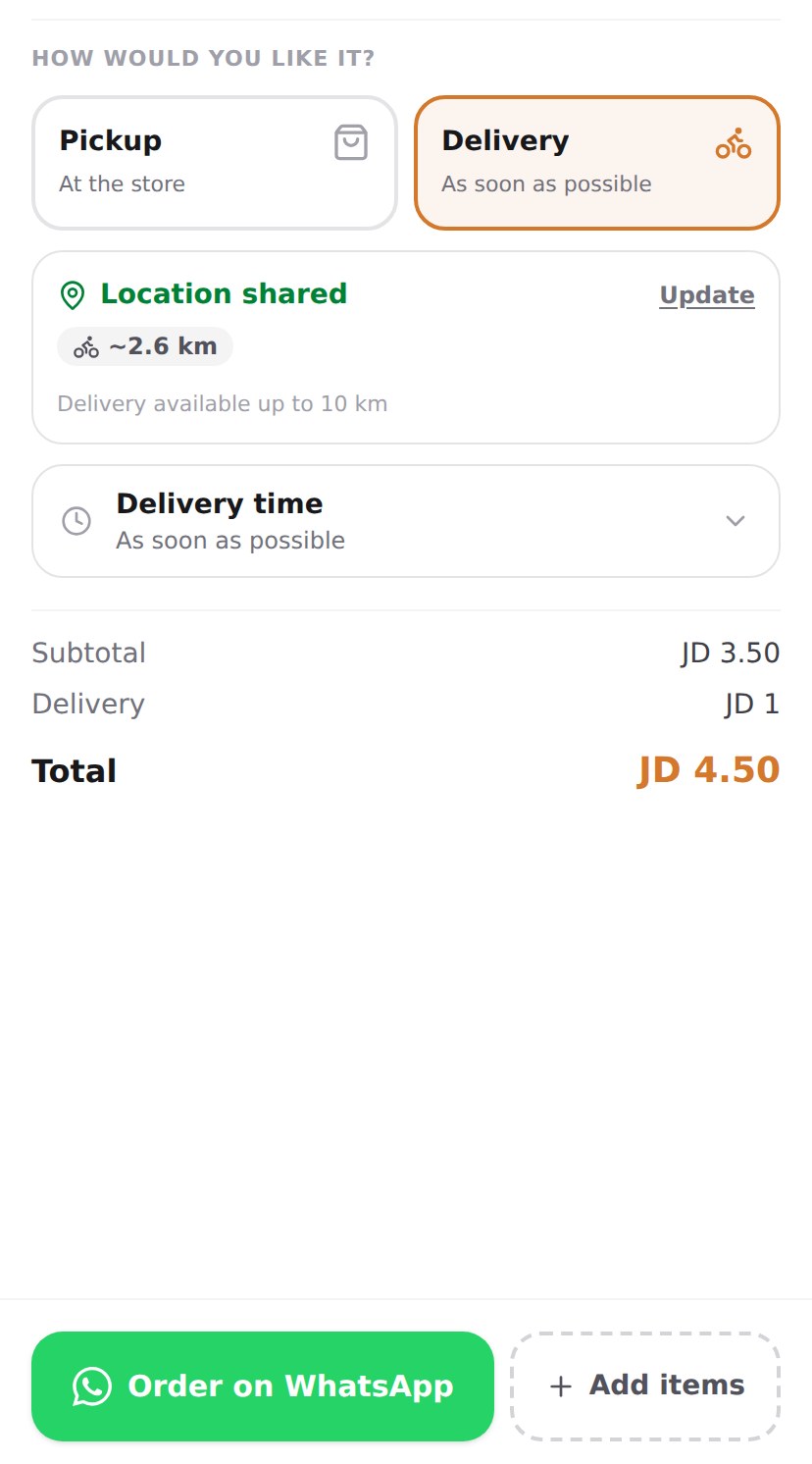
A customer 2 km away in a straight line, with the factor at 1.3, counts as 2.6 km. That falls inside the first band (up to 3 km), so they are charged 1 — not the 1.75 of the second band. Raise the factor in a city with rivers, one-way systems or highways where drivers travel much further than the crow flies.
Location sharing on, and at least one range, and your restaurant coordinates. Miss any one and the system quietly falls back to the flat fee or range from step 02 — no error, just the wrong price.
04Delivery hours
Your kitchen may open at 11 but your driver may only start at 6. Delivery hours are set separately from your opening hours.
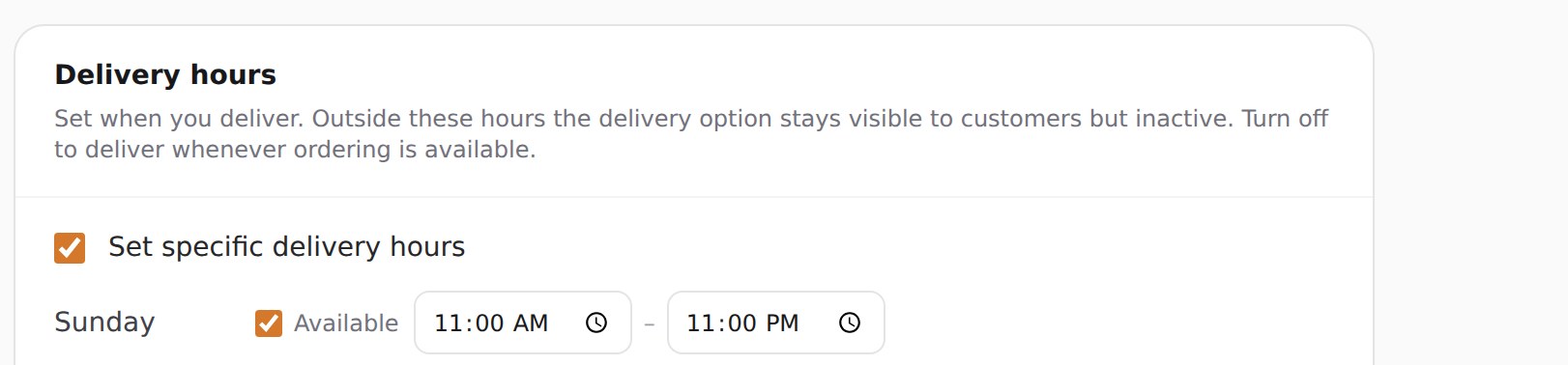
Outside these hours the delivery option stays visible but goes inactive, so customers can see that you deliver without being able to order right then. Leave the whole switch off and delivery follows your normal ordering hours.
05What your customer sees
The same checkout, at three different addresses.
Before they share their location
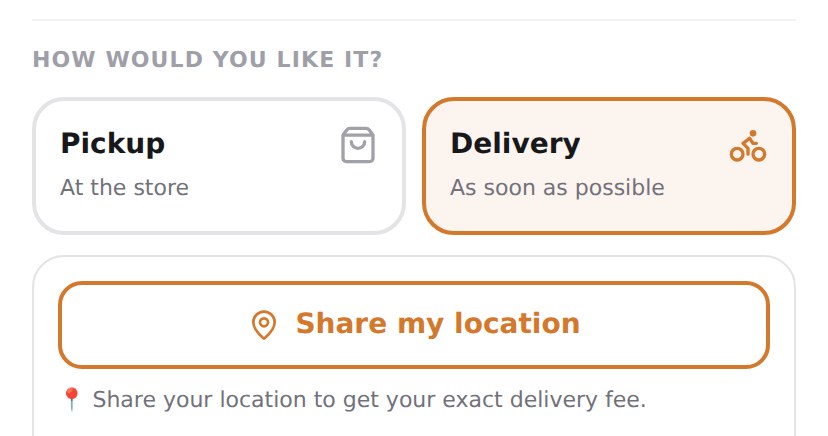
The range is worked out from your bands automatically: cheapest band to priciest. The customer can order without sharing anything; the fee is then confirmed with you over WhatsApp.
After they share
When they are too far
06Mistakes to avoid
The ones that quietly cost money.
- Typing 1 into the driving distance factorThat prices every order on straight-line distance, which is always shorter than the road. You undercharge on every single delivery, and your area check is too generous as well.Fix: leave it empty for 1.3, or raise it if your city drives long.
- Forgetting that the last row sets your delivery areaThere is no separate radius field. If your last band is 6 km, a customer at 7 km is refused — even if you would happily have driven there.Fix: make the last row reach as far as you genuinely deliver.
- Adding ranges but never setting the restaurant locationDistance cannot be measured from nothing, so everyone silently gets the flat estimate instead. No warning appears.Fix: set the pin and confirm it with Preview on map.
- Setting the pin from home instead of the restaurantEvery fee is measured from that pin. A few kilometres out shifts every customer into the wrong band.Fix: press Use my current location while standing in the restaurant.
- Delivery hours much narrower than your opening hoursCustomers see delivery greyed out during your busiest window and assume the menu is broken.Fix: match delivery hours to when a driver is genuinely available.
Enter your bands in any order — they are sorted by distance when saved, and the nearest band that covers the customer always wins. You cannot break it by typing 10 before 3.
07Quick answers
Do customers have to share their location?
No. Without it they see your estimated delivery range and can still order — you confirm the final fee with them on WhatsApp. Sharing simply makes it exact upfront.
Is the delivery distance the real driving distance?
Not exactly. It is the straight-line distance multiplied by your driving distance factor, which defaults to 1.3. That is why the customer sees a “~” before the number.
Can I deliver free nearby and charge further out?
Yes. A fee of 0 is perfectly valid, so a first band of “up to 2 km, fee 0” gives free local delivery.
Does free delivery over a threshold work with distance pricing?
Yes. Once the subtotal reaches your threshold the delivery fee drops to zero, whichever distance band the customer is in.
What happens if a customer is outside my delivery area?
They are told at checkout and cannot place a delivery order. Pickup, if you offer it, is still available to them.
Can I change the delivery fee after seeing the order?
Yes. The order reaches you on WhatsApp with the customer's location, so you can agree a different fee before confirming.